# Animoji Karaoke/movielines how-to
Inspired by [\#AnimojiKaraoke](https://twitter.com/hashtag/AnimojiKaraoke?src=hash), I made this movie lines version one Sunday morning.
Animoji's are only available on iPhone X, so that's the main prerequisite.
– I screen-recorded (part of iOS 11 Control Center) a Pulp Fiction YouTube video, which I then Airplayed to my TV (using my iPad). Look for your favorite film or music. You could record your TV/PC screen using a Bluray/DVD you have or streaming service, you only need the audio.
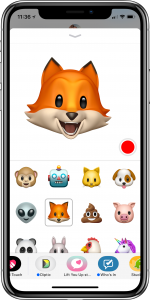
– I practiced the speech, using Animoji in iMessages. Go full screen Animoji. Hardest part is getting the facial characteristics to work.
– Then screen-record the Animoji as you try. Record the different parts with different characters.
– Replay the Animoji video as you play the Pulp Fiction clip to see if it kinda matches.
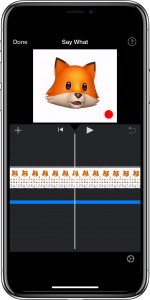
– Then import the YouTube clip and your main Animoji character into iMovie (on you iPhone for example).
– Detach the soundtrack of the YouTube clip from its video, remove the video track, and match the video with your Animoji character's speech.
– Don't worry about the vertical screen recording format for now.
– Once you're happy, export the main movie. Remember, you still have the second character's Animoji screen recording.
– Then I used [Pic Stitch](https://itunes.apple.com/us/app/pic-stitch-collage-editor/id454768104?at=10l7vI&ct=mwli)\* to bring both screen-recordings together, using a 2×1 aspect ratio, pinch to zoom into the character, making sure the other screen elements don't show up. Make sure the second character's lines match up with the soundtrack.
– Then upload! Different Social Media sites have different lengths of video though. Best maybe sent it to YouTube, and distribute that link.
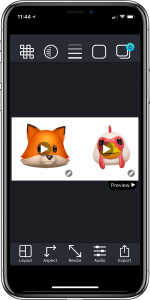
* I initially used the free version of Pic Stitch, where you can't remove the (white) borders. An upgrade allows you to remove the borders and make it more seamless.